 Graphic Designer Demo TaskGraphic Designer Demo Task
Congratulations on making it to the next step, and thank you for taking the time to interview with us! As part of the application process, our client has put together a demo task so they can get a feel for how you think and design. Everything you need is right here on this page.
Start with the visual guide, then read through the brief for each deliverable before you dive into your design tool.
There are seven deliverables in total, spread across two campaigns. The client has made the Sale Campaign video optional, since not everyone's portfolio includes short video editing, so feel free to skip it if that's not your thing. We'd love to see the other six completed for both campaigns.
Colour Launch Campaign
A marketing email designed to match the client's existing email style.
4 hoursA website asset consistent with the look and feel of the client's site.
1 hourA static ad design suitable for paid social placements.
1 hourSale Campaign
A marketing email designed to match the client's existing email style.
2 hoursA website asset consistent with the look and feel of the client's site.
1 hourA static ad design suitable for paid social placements.
1 hourA short video concept aligned with the Sale campaign creative. This one's optional, since not all shortlisted applicants have short-form video editing in their portfolio, just submit this if you're willing to give it a go.
Please create your work in one of the following:
Give both of these a good read before you start designing.
This shows the client's design style across their emails, website, and paid media, your work should feel right at home next to these.
Need to jump back to a specific brief while you're designing? Here are quick links to each one, grouped by campaign.
A couple of extra details worth keeping in mind before you start designing.
Not quite! For the Colour Launch Web Asset, Colour Launch Paid Media Static, Sale Web Asset, and Sale Paid Media Static, please use ES Peak for both the CTA and body copy, unless the brief says otherwise. Minion Pro is only used for the specific charcoal text called out in the brief.
The client also shared their email and web guidelines, which includes the fonts used, worth a look before you start.
View Email & Web Guidelines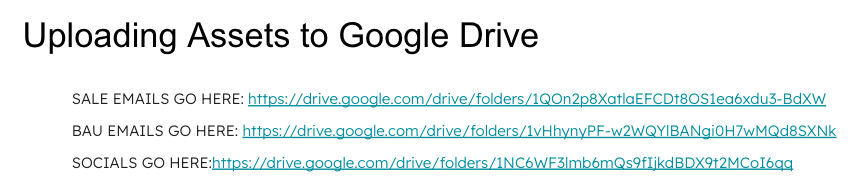
Please upload all the pieces for each Web Asset (Colour Launch and Sale) together in one folder, rather than as loose individual files. And if your web asset is a homepage banner, please export it as a GIF, since these are usually animated.
How your folder should look
We'd love to see your work within 3 to 4 business days of getting this brief. Please rest on the weekends, they don't count! And if you need a bit more time, just let us know via email so we can inform the client, no stress!
Please pop everything into one main Google Drive folder, with two subfolders inside: one for the Colour Launch Campaign and one for the Sale Campaign. Label each file clearly by deliverable (for example, "Colour Launch - Email", "Sale - Video"), and make sure sharing is set to "Anyone with the link can view" for the main folder and everything inside it.
Payment for this task is worked out on an hourly basis, using the estimated hours listed next to each deliverable above. For example, the Email task for the Colour Launch Campaign is estimated at 4 hours, so payment for that task would be 4 hours multiplied by your hourly rate, and so on for each asset.
Once that's all set, use the form below to submit, just add your name and the link to your main Google Drive folder.